Installation guide
Install Éclair CMS in 3 minutes: requirements, download, upload via FTP or file manager, the 4-step setup wizard and your first settings.
Contents
- What do you need to install Éclair CMS?
- Step 1: download Éclair
- Step 2: upload the files to your hosting
- With your host’s file manager
- With an FTP client like FileZilla
- What about a subfolder or a subdomain?
- Step 3: answer the wizard’s 4 questions
- Welcome: checking your hosting
- Question 1: your site
- Question 2: your account
- Question 3: your visibility
- Question 4: the summary
- It’s live!
- Step 4: your first settings in 10 minutes
- What if the installation doesn’t start?
- Questions about installation
You can install Éclair CMS in about 3 minutes: there’s no database to create and no configuration file to fill in. You upload a folder to your hosting, open your site’s URL, and a wizard asks you four questions. This guide walks you through each step with screenshots, then covers the settings to adjust right afterward.
What do you need to install Éclair CMS?
Standard web hosting, like a shared hosting plan for a few dollars a month. No database is needed.
| Item | Minimum | Recommended |
|---|---|---|
| PHP version | 8.1 | 8.3 or 8.4 |
| Required PHP extensions | mbstring, json, dom, session | enabled by default almost everywhere |
| Recommended PHP extensions | — | gd (WebP images), zip (backups), curl (IndexNow, AI assistant), zlib (translated admin) |
| Web server | Apache or LiteSpeed with .htaccess | same, or Nginx with the provided configuration |
| HTTPS certificate | recommended | Let’s Encrypt, free with almost every host |
| Disk space | 1 MB for Éclair | plus your images |
| Database | none | none |
Nearly every shared host works: o2switch, OVH, Hostinger, IONOS, PlanetHoster… And don’t worry: the setup wizard checks all of this for you and explains what to fix.
Step 1: download Éclair
Download the official archive, then unzip it on your computer (double-click it on a Mac; on Windows, right-click › Extract All).
Download Éclair 1.2.0 (402 KB)
You get an eclair folder and three text files (readme, MIT license and third-party notices) that don’t need to be uploaded. Here’s what the eclair folder contains:
| Item | Role |
|---|---|
index.php | The entry point: it serves cached pages without loading the application |
.htaccess | Clean URLs, protections, compression and browser caching (hidden file) |
app/ | Éclair’s code, the admin and the theme |
assets/ | The admin’s CSS and JavaScript, and the site’s tiny script |
data/ | Your content, settings and accounts, created during installation and never public |
cache/ | Pages that have already been generated |
media/ | Your images |
eclair-config.exemple.php | An optional template for advanced settings |
Step 2: upload the files to your hosting
The goal: index.php, .htaccess and the app, assets, data, cache and media folders must end up directly in your site’s public folder. Depending on your host, it’s called public_html, www or htdocs, or it’s named after your domain.
With your host’s file manager
This is the easiest method, with no software to install:
- Open the file manager from your host’s control panel (in cPanel: Files › File Manager).
- Go to your site’s public folder and upload the
eclair-cms-1.2.0.ziparchive. - Right-click the archive, then choose Extract: an
eclairfolder appears. - Show hidden files (in cPanel: Settings › Show Hidden Files (dotfiles)), open the
eclairfolder, select all of its contents,.htaccessincluded, and move them up one level, into the public folder. - Delete the now-empty
eclairfolder and the archive.
With an FTP client like FileZilla
- Get your FTP credentials from your host’s control panel: server, username and password (and port 22 if your host offers SFTP, which is more secure).
- Connect with FileZilla, which is free, and open your site’s public folder in the right-hand pane.
- Turn on Server › Force showing hidden files, otherwise
.htaccessmay not get uploaded. - In the left-hand pane, open the
eclairfolder, select all of its contents and drag them to the right.
What about a subfolder or a subdomain?
That works too. For a site at example.com/site/, just upload the files to the site folder: Éclair detects the subfolder on its own. For a subdomain like blog.example.com, upload them to the folder linked to that subdomain.
Step 3: answer the wizard’s 4 questions
To install Éclair CMS, all that’s left is to open your site’s URL in your browser: the setup wizard starts, in English or in one of the 6 other languages offered in the top-right corner.
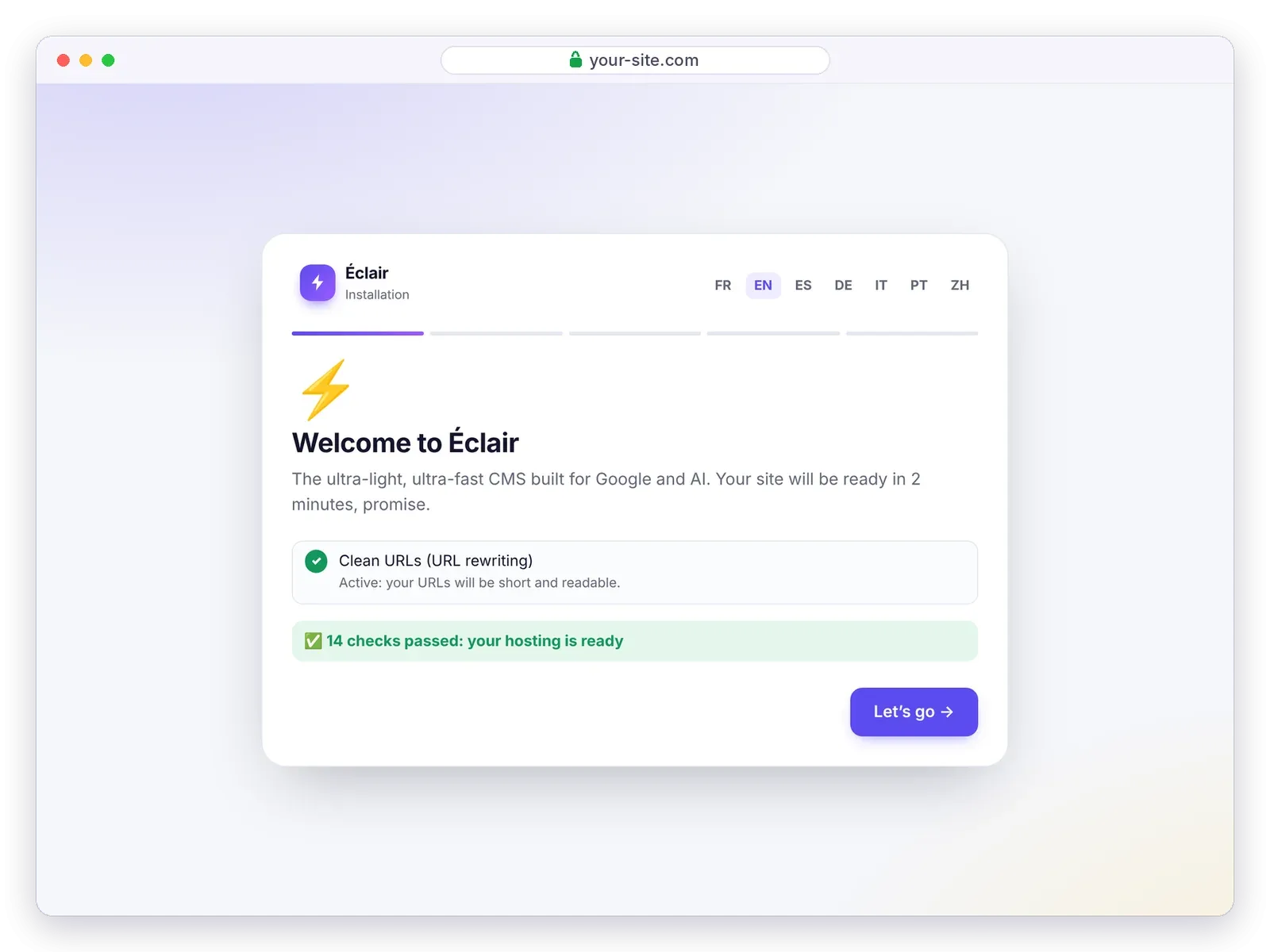
Welcome: checking your hosting
The wizard checks the PHP version, extensions, folder write permissions, HTTPS and URL rewriting. If everything is green, click Let’s go. If an item is red, the wizard explains what to fix with your host.
Question 1: your site
Fill in the Site name, an optional Tagline and the Site language, then pick the kind of site you want. You can change everything later.
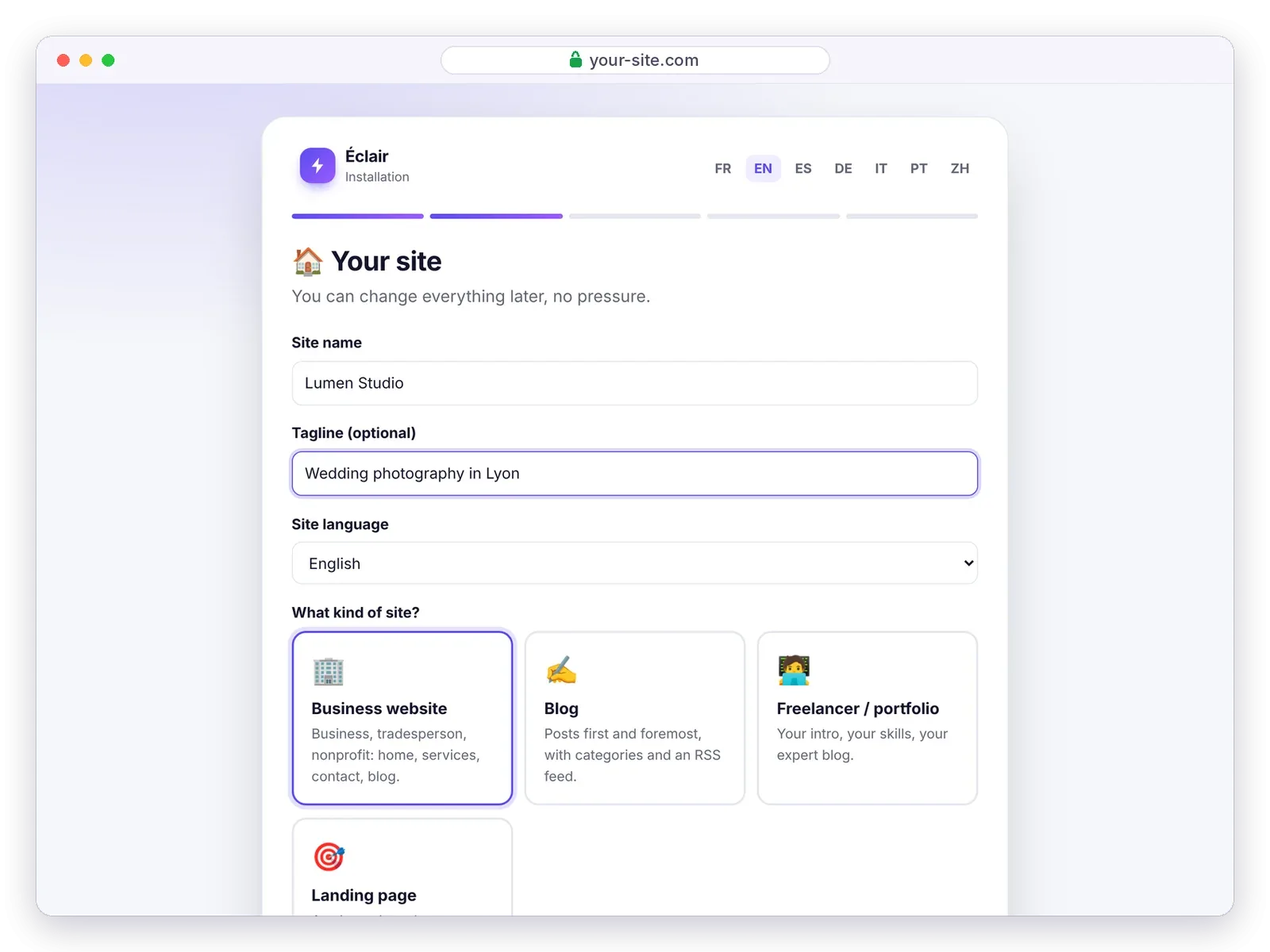
The type you choose determines the first pages created for you:
| Type | What Éclair creates |
|---|---|
| 🏢 Business website | Home (banner, features, latest posts), Services with FAQ, About, Contact, Blog and legal pages |
| ✍️ Blog | Home with the latest posts, About, Contact, a “Guides” category and legal pages |
| 🧑💻 Freelancer / portfolio | Home in your name, skills, About, Blog, Contact and legal pages |
| 🎯 Landing page | A sales page (banner, features, FAQ, form) and the legal pages, with no blog |
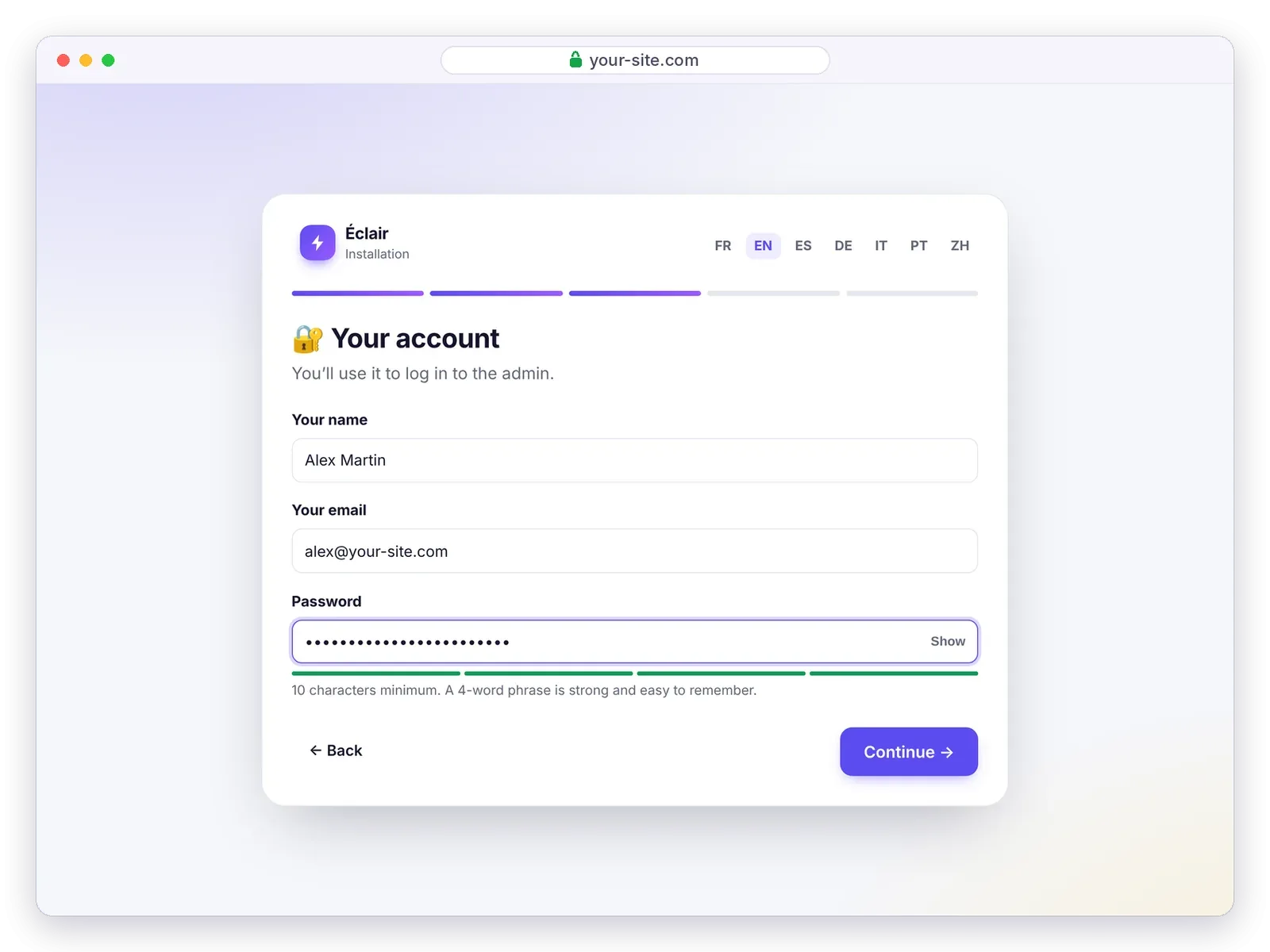
Question 2: your account
Your name, your email and a password of at least 10 characters. Passwords that are too common are refused, and a meter shows how strong yours is.
Question 3: your visibility
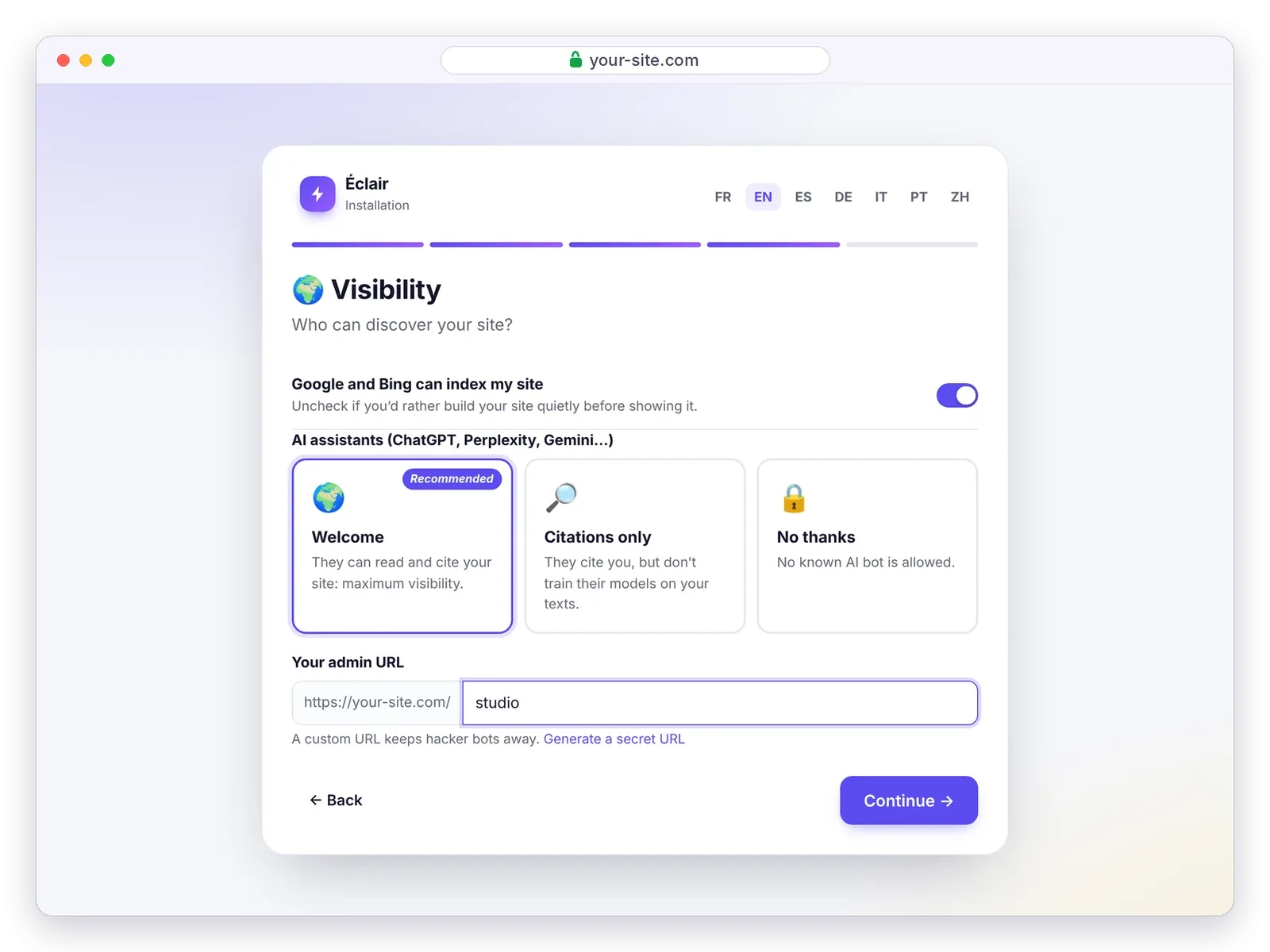
- Google and Bing can index my site: uncheck it if you’d rather build your site quietly before showing it.
- AI assistants (ChatGPT, Perplexity, Gemini…): Welcome (they can read and cite your site, recommended), Citations only (they cite you without training their models on your texts) or No thanks.
- Your admin URL: replace
adminwith a word of your own, or click Generate a secret URL. A custom URL keeps hacker bots away.
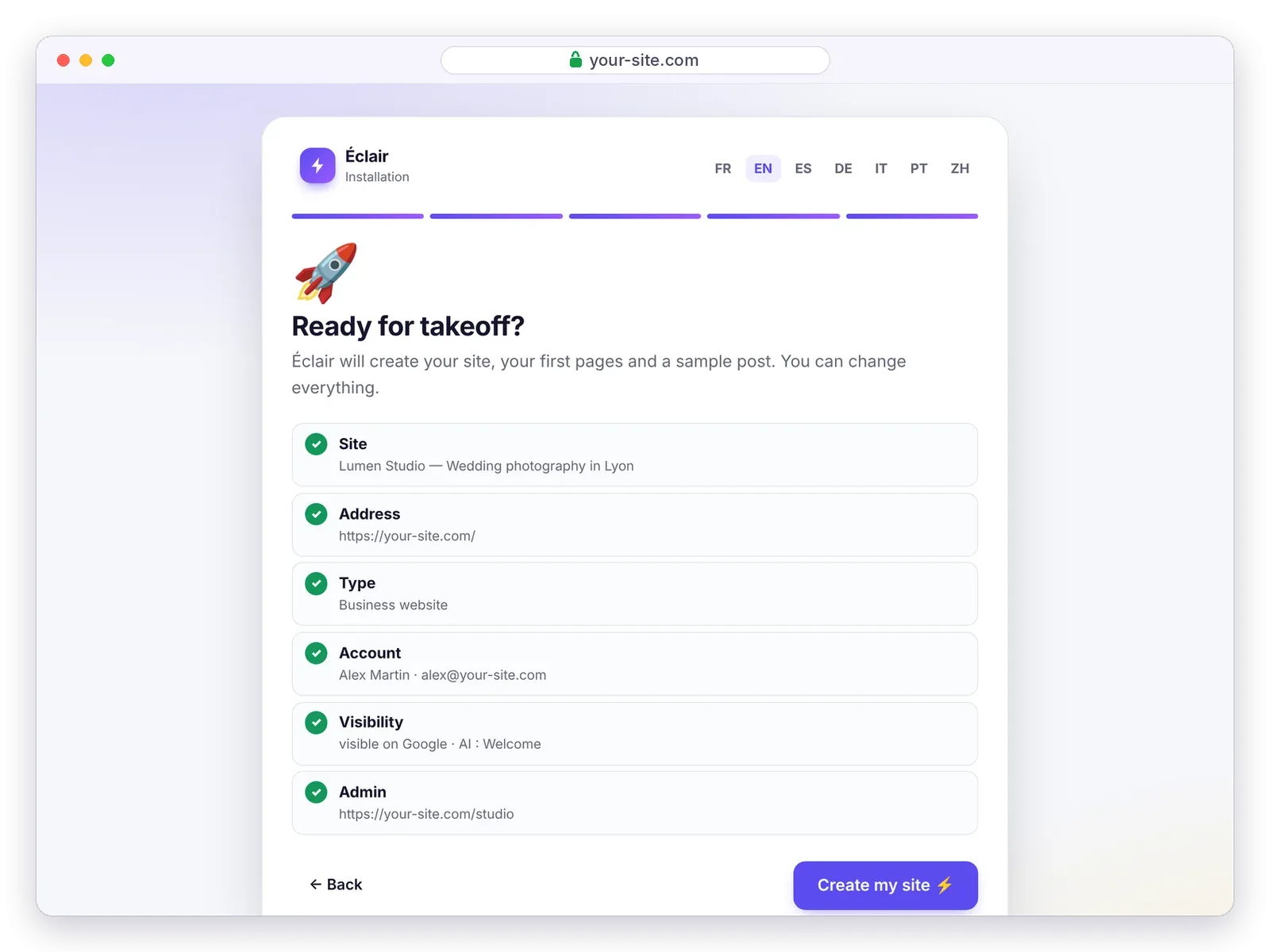
Question 4: the summary
Review your choices, then click Create my site ⚡. Éclair creates your pages, a sample post, your account, the sitemap and the site icons.
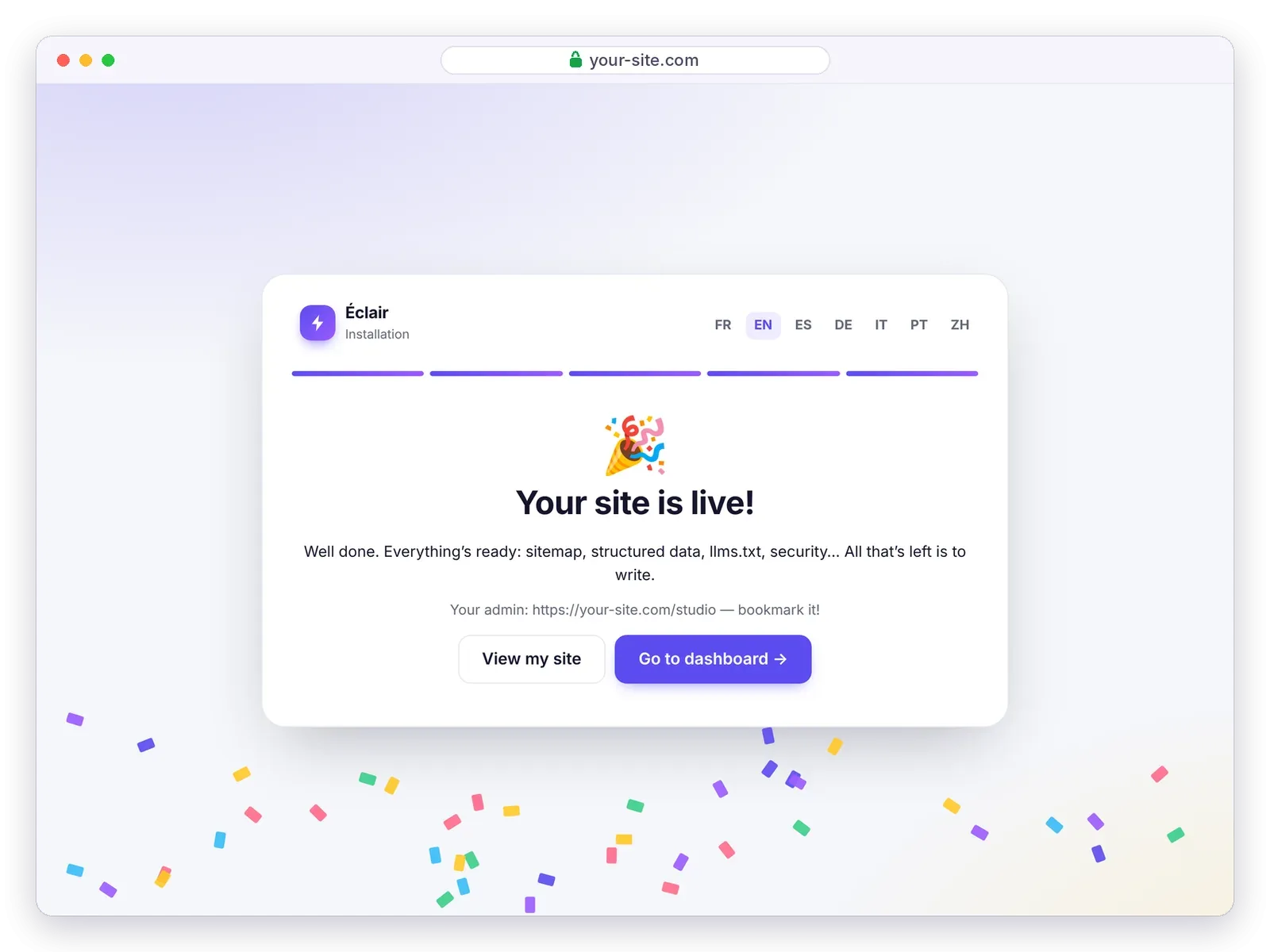
It’s live!
Confetti, and your site is published. Write down your admin URL (for example https://your-site.com/studio) and bookmark it: that’s where you’ll log in from now on.
Step 4: your first settings in 10 minutes
The dashboard greets you with a Getting started checklist: each line takes you to the right screen.
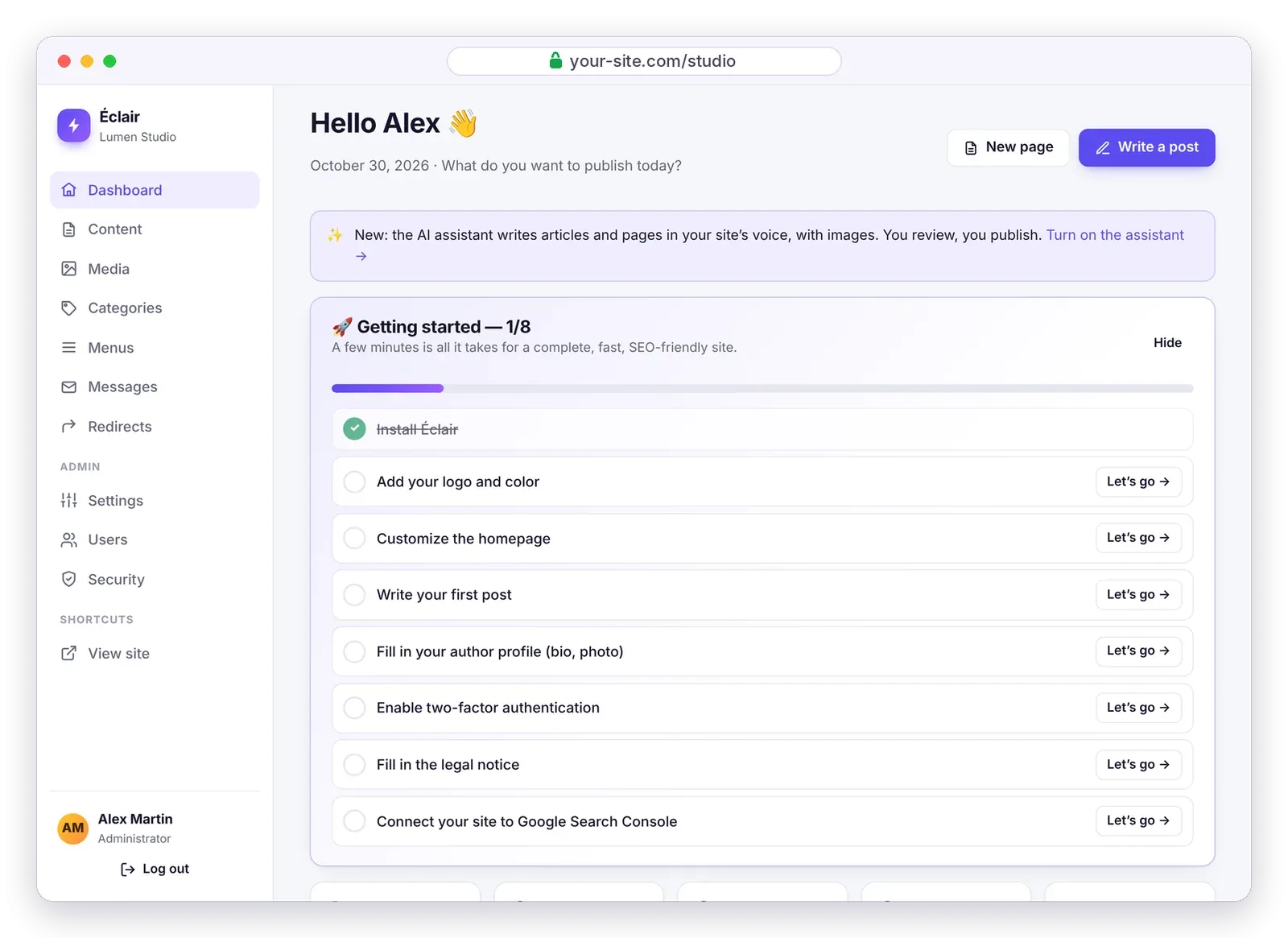
- Add your logo and color (Settings › Appearance): color contrast stays readable automatically.
- Customize the homepage: replace the sample text with your own offer.
- Write your first post, with help from the editor’s SEO and GEO scores.
- Fill in your author profile: a photo, a job title and a bio build trust with Google and AI.
- Enable two-factor authentication (My profile › Two-factor authentication).
- Fill in the legal notice, which is mandatory in France as well as in Spain.
- Connect your site to Google Search Console (Settings › SEO): paste the verification tag, and Éclair extracts the code.
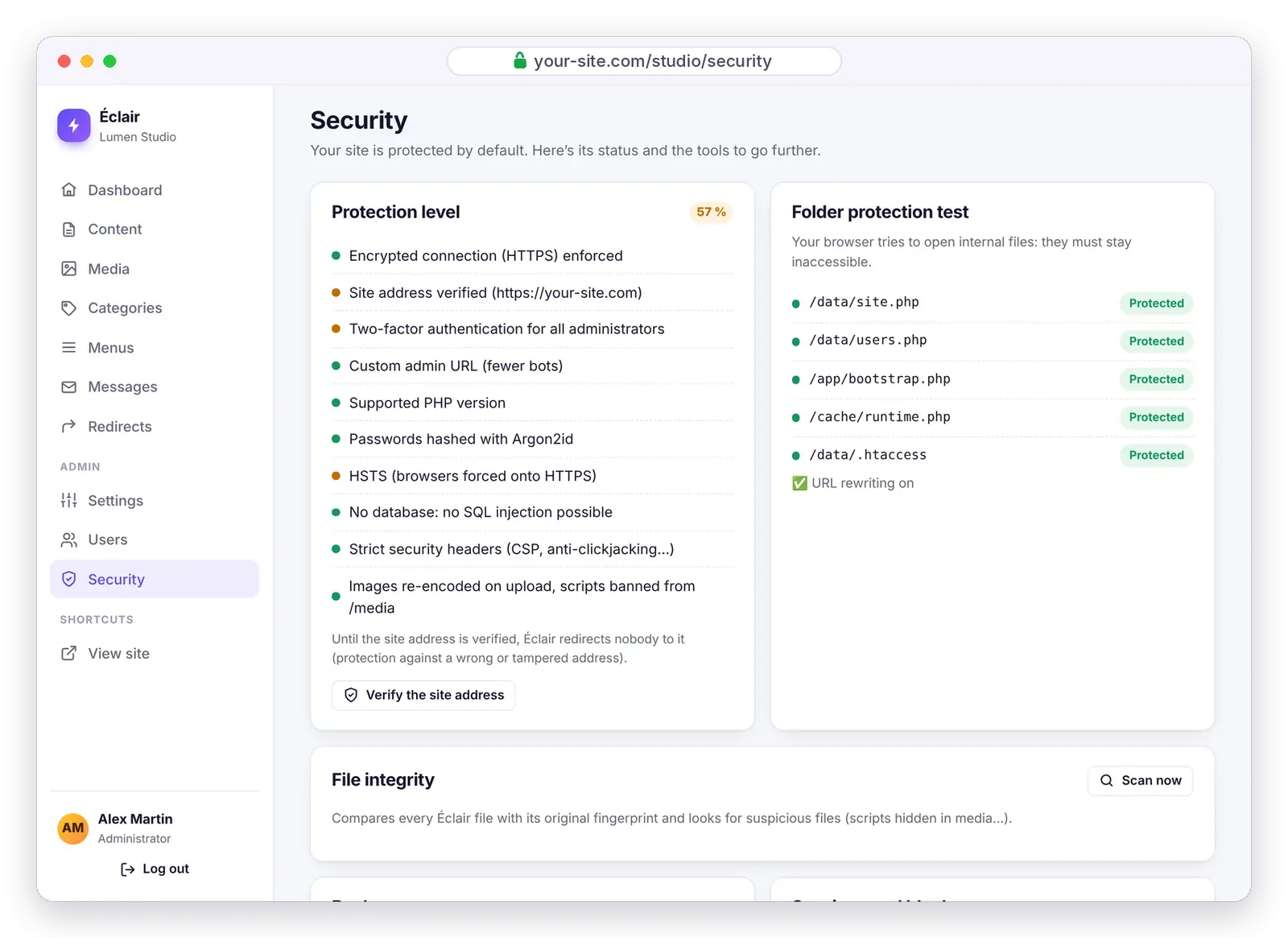
Add an eighth step: in Security, click Verify the site address. Once the address is confirmed, Éclair redirects visitors to the official address (with or without www) and enforces HTTPS.
Each setting is explained in detail in Getting started after installation.
What if the installation doesn’t start?
| What you see | Solution |
|---|---|
| “Éclair a besoin de PHP 8.1 ou plus récent” (French for “Éclair needs PHP 8.1 or later”) | Change the PHP version in your host’s control panel, then reload the page |
| A 404 error on every page except the home page | The .htaccess file wasn’t uploaded: show hidden files and upload it again |
| A 500 error right after uploading | Your host rejects a .htaccess directive: contact your host (details) |
| “Installation locked” | The 2-hour window has passed: delete data/install-window.php and reload |
| A folder flagged as not writable | Set the data, cache and media folders to 755 permissions with your FTP client |
For everything else, see the troubleshooting guide or send me a message.
Questions about installation
How long does it take to install Éclair?
About 3 minutes: the time it takes to upload less than 1 MB of files and answer the wizard’s 4 questions. Allow a few extra minutes if you first need to turn on the HTTPS certificate or change the PHP version.
Do I need to create a database to install Éclair CMS?
No. Éclair doesn’t use any database: your content is stored in protected files in the data folder. There’s no database to create and no MySQL credentials to enter.
Can I install Éclair on hosting that already has a site?
Yes, in a subfolder (for example example.com/new/) or on a subdomain. Éclair automatically detects the folder it’s installed in.
Can I try Éclair before putting it online?
Yes: install it on your computer with a local server by following installing on your computer. You can then move the whole folder to your host.
How do I uninstall Éclair?
Delete its files and folders: since there’s no database, nothing else is left on your hosting. If you want to keep your content, download a backup from the Security page first.