Install on o2switch
Install Éclair CMS on o2switch in 15 minutes: add your domain in cPanel, pick PHP 8.3, get a free Let’s Encrypt certificate, upload the files, run the wizard.
Contents
- Why is o2switch a good fit for Éclair?
- Step 1: add your domain in cPanel
- Step 2: choose PHP 8.3 or 8.4
- Step 3: turn on the free HTTPS certificate
- Step 4: upload Éclair with the File Manager
- Step 5: run the setup wizard
- Step 6: checks to run after installation
- What about contact form emails?
- Questions about Éclair and o2switch
o2switch is one of the most popular French web hosts, and it’s a perfect match for Éclair: cPanel, PHP up to 8.5, .htaccess files and free Let’s Encrypt certificates. This guide takes you menu by menu, from the domain name to your live site. Allow 15 minutes, most of it spent waiting for the HTTPS certificate. It’s also how eclaircms.org is hosted.
o2switch and Éclair by the numbers
15 min
from domain to live site, including the wait for the certificate
0
databases to create in cPanel
PHP 8.4
available in o2switch’s version selector
€0
for the Let’s Encrypt HTTPS certificate, renewed automatically
Why is o2switch a good fit for Éclair?
o2switch’s hosting plan includes everything Éclair needs, with no add-ons to buy. The information below comes from the plan page and o2switch’s documentation, both in French, as of October 30, 2026.
| What Éclair needs | At o2switch |
|---|---|
| PHP 8.1 or later (8.3 recommended) | Your choice of versions up to 8.5, in cPanel |
| Apache with URL rewriting | Apache, mod_rewrite and .htaccess |
| HTTPS certificate | Free Let’s Encrypt, renewed automatically |
| File upload | cPanel File Manager, FTP and SSH |
| Database | Not needed for Éclair |
Step 1: add your domain in cPanel
If your site is your account’s main domain, it already uses the public_html folder: skip straight to step 2. Otherwise:
- Log in to cPanel from your o2switch customer area.
- Open Domains (Domaines), then the list of configured domains.
- Create a new domain and enter its name, for example
your-site.com. - Keep the Document Root (Racine des documents) that cPanel suggests: a folder named after the domain, next to
public_html(for example/home/username/your-site.com). - Confirm.
Make a note of this folder: that’s where you’ll upload Éclair. The official procedure is described in o2switch’s documentation on domains.
Step 2: choose PHP 8.3 or 8.4
o2switch’s “native” version is PHP 8.1: Éclair works with it, but a recent version is faster and supported for longer.
- In cPanel, open Software › Select PHP Version (Logiciels › Sélectionner une version de PHP).
- Choose 8.3 or 8.4 from the list, then save.
The extensions Éclair needs (mbstring, json, dom and session, plus gd, zip and curl) are managed in the same tool: if Éclair’s wizard reports one as missing, check its box here. See o2switch’s PHP documentation.
Step 3: turn on the free HTTPS certificate
Do this before installing Éclair: the wizard saves the address you use to open the site, so it might as well start with https://.
- In cPanel, open Security › Let’s Encrypt™ SSL (Sécurité › Let’s Encrypt SSL).
- Find your domain and click the link next to it that generates the certificate (Générer in the French interface), including the
wwwversion if it’s offered. - Wait a few minutes: the certificate then renews automatically.
If something goes wrong (a domain that doesn’t point to o2switch yet, for example), o2switch’s Let’s Encrypt documentation details what to check.
Step 4: upload Éclair with the File Manager
- Download Éclair to your computer (the
eclair-cms-1.2.0.ziparchive, 402 KB). No need to unzip it. - In cPanel, open Files › File Manager (Fichiers › Gestionnaire de fichiers).
- Click Settings (Paramètres, top right), check Show Hidden Files (dotfiles) (Afficher les fichiers masqués), then save. This step is essential to see the
.htaccessfile. - Open your domain’s folder (the one from step 1, or
public_html). - Click Upload (Charger) and upload the archive.
- Back in the folder, right-click the archive and choose Extract: an
eclairfolder appears. - Open that
eclairfolder, click Select All (Tout sélectionner), then Move (Déplacer), and enter your domain’s folder (for example/your-site.com). - Delete the now-empty
eclairfolder and the archive.
You should now see, directly in your domain’s folder: app, assets, cache, data, media, index.php, .htaccess and eclair-config.exemple.php.
Step 5: run the setup wizard
Open https://your-site.com in your browser. Éclair’s wizard checks your hosting: at o2switch, every item should be green if PHP 8.3 or 8.4 is active and the certificate is in place.
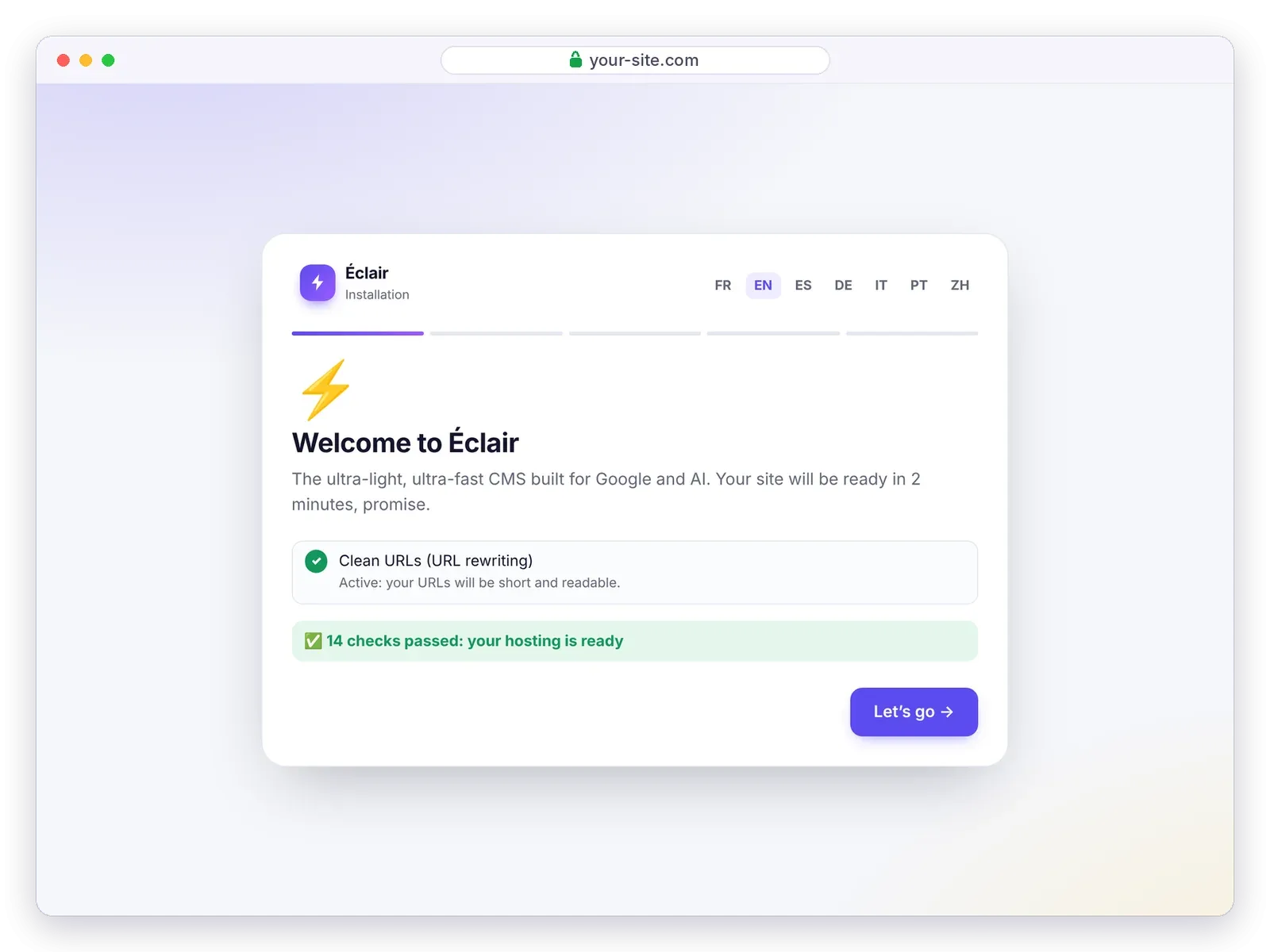
Then answer the 4 questions (your site, your account, your visibility, your admin URL): every screen is shown in the installation guide. Be sure to write down your admin URL, then click Create my site ⚡.
Step 6: checks to run after installation
Log in to your admin, then:
- Security › Verify the site address: Éclair calls itself on your domain. Once the address is confirmed, it enforces HTTPS and redirects to the official address, with or without
www. - Look at the security log on the same page: the IP address of your login should be yours (compare it with a site like “what is my IP”). If every line shows the same address and it isn’t yours, choose your host’s header in Settings › Advanced › Site behind a proxy / CDN, so that brute-force protection and the form limits target the right visitors.
- My profile › Two-factor authentication: turn it on right away.
- Finish the dashboard’s Getting started checklist, explained in detail in Getting started after installation.
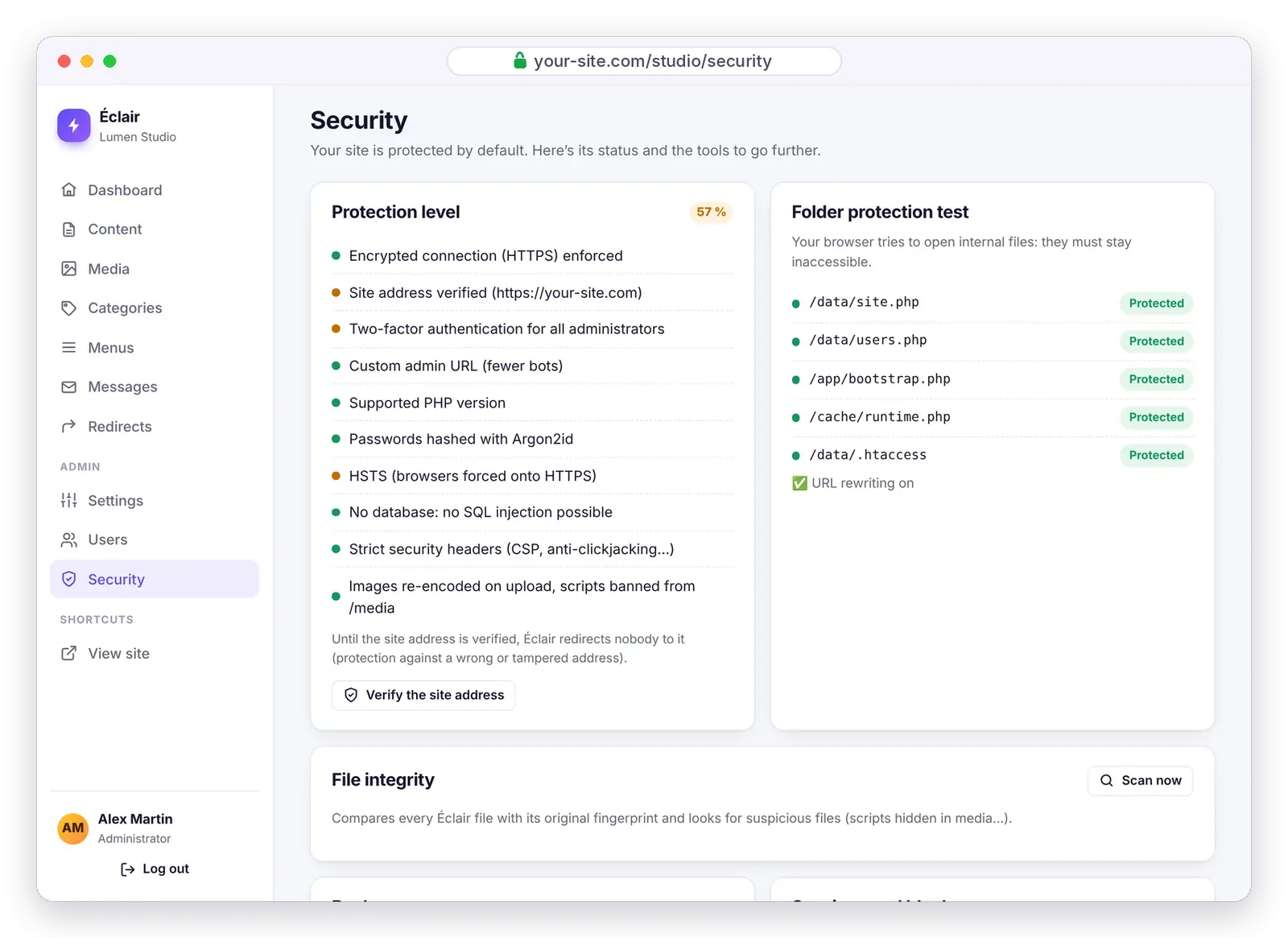
There’s no need to turn on any other caching at o2switch: Éclair already serves every page from its own static cache, which clears itself whenever you change something.
What about contact form emails?
Messages sent through your form go to your administrator account’s email address, and they’re also saved in the admin (Messages menu): nothing gets lost, even if an email goes astray. You can choose a different receiving address in Settings › Contact. If emails don’t arrive, see the troubleshooting solutions.
Questions about Éclair and o2switch
Do I need to create a MySQL database at o2switch?
No. Éclair doesn’t use any database: ignore the Databases (Bases de données) section of cPanel. Your content is stored in protected files in the data folder.
Which PHP version should I choose at o2switch for Éclair?
PHP 8.3 or 8.4, in Software › Select PHP Version. o2switch’s native version, PHP 8.1, works too, but Éclair’s wizard recommends switching to a more recent version.
Can I host several Éclair sites on the same o2switch account?
Yes. Add each domain in cPanel, with its own folder, and upload a copy of Éclair to each one. The sites are completely independent.
The site shows a 404 error on every page except the home page: what should I do?
The .htaccess file wasn’t uploaded or moved. In the File Manager, show hidden files (Settings) and check that it sits right next to index.php.
How do I back up my Éclair site at o2switch?
In Éclair’s admin, open Security › Download a backup: you get a ZIP archive of your content and images. Keep it on your computer, in addition to your host’s backups.